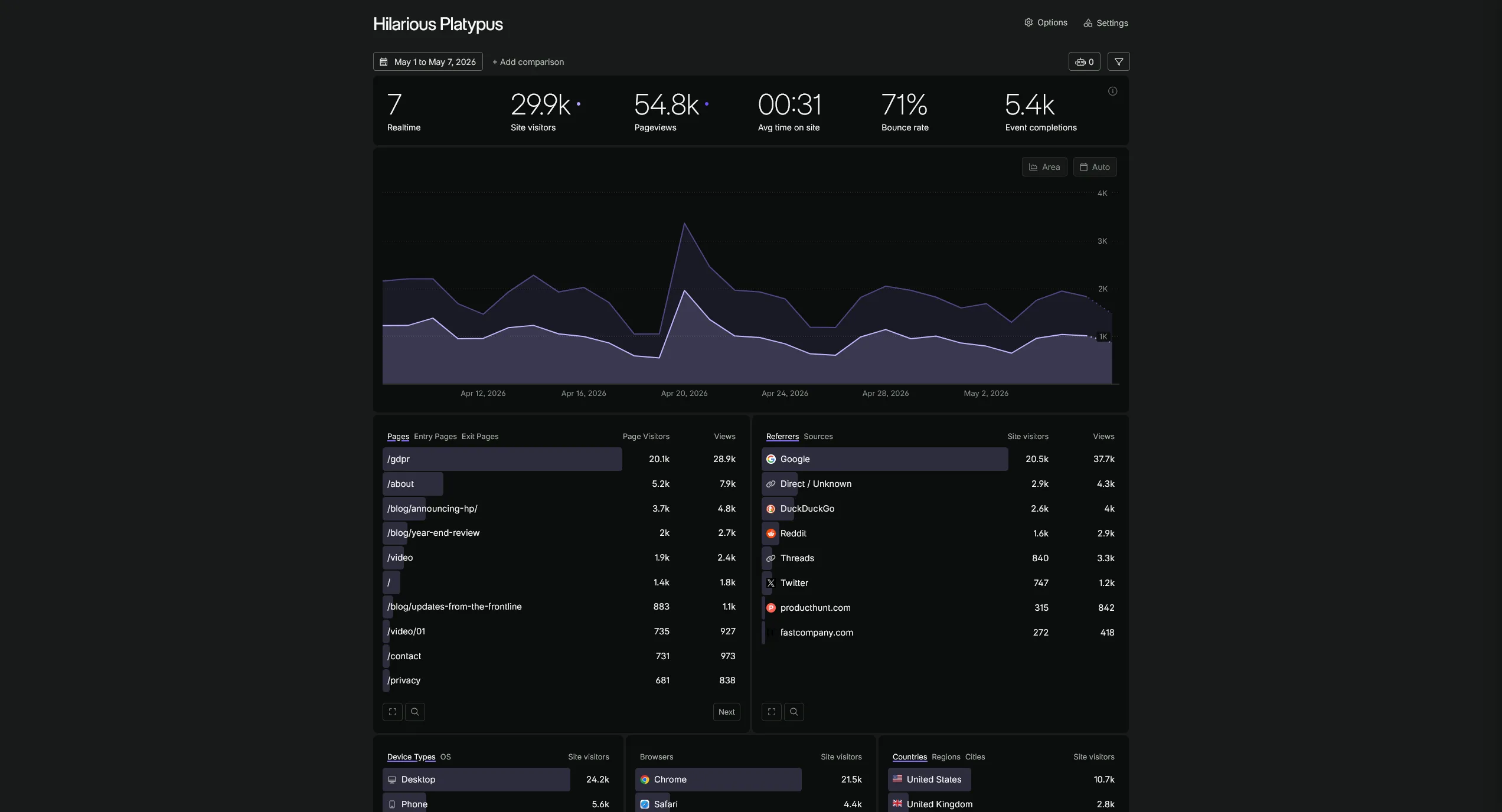
At få præcis, privacy-kompatibel analytics på din website kræver ikke en kompleks opsætning. Fathom Analytics er designet til at være live på få minutter — et enkelt script-tag, ingen cookie-samtykke-konfiguration og et dashboard, der virker fra første indlæsning.
Her er præcis, hvordan du kommer i gang.
Trin 1: Opret din Fathom-konto 🚀
Gå til Fathom Analytics og opret dig. Fathom tilbyder en gratis prøveperiode, så du kan teste det fuldt ud, før du betaler. Prisen starter ved $15/måned for op til 100.000 månedlige sidevisninger, og du kan tilføje ubegrænset antal sites til én konto — hvilket gør det særligt fordelagtigt, hvis du administrerer flere projekter.
Når du er logget ind, klik på Add a new site og indtast dit domænenavn. Fathom genererer et unikt site ID (en kort kode som ABCDE), der indlejres i dit tracking script.
Trin 2: Tilføj tracking scriptet ✍️
Fathom giver dig et enkelt script-tag, du indsætter i din sides <head>:
<script src="https://cdn.usefathom.com/script.js" data-site="YOURSITE" defer></script>
Erstat YOURSITE med dit faktiske site ID fra dashboardet. Attributten defer betyder, at det indlæses efter resten af din side, så det ikke blokerer rendering — en vigtig årsag til, at Fathom har stort set nul påvirkning på dine Core Web Vitals.
Scriptet fylder under 2KB. Det er det hele. Ingen Tag Manager-container, ingen ekstra konfigurationsfil, ingen integration med en consent management-platform nødvendig.
Hvor det skal indsættes
- Statisk HTML: Indsæt før
</head>i dit base-layout eller din template. - WordPress: Brug et plugin som Insert Headers and Footers eller tilføj det direkte i dit temas
header.phpviawp_head(). Fathom har også et officielt WordPress-plugin. - Shopify: Indsæt i
<head>-sektionen af dintheme.liquid-fil under Online Store → Themes → Edit code. - Webflow: Gå til Project Settings → Custom Code og indsæt i Head Code-sektionen.
- Ghost: Tilføj under Settings → Code injection → Site Header.
Trin 3: Opsætning til JavaScript-frameworks 🧩
Hvis du kører en React-, Next.js-, Vue- eller Nuxt-app, vil den statiske script-tag-tilgang ikke tracke route-skift inde i din SPA. Fathom vedligeholder en officiel npm-pakke til dette:
npm install fathom-client
For Next.js (App Router) tilføj en tracking-komponent til dit root-layout:
'use client';
import { useEffect } from 'react';
import * as Fathom from 'fathom-client';
import { usePathname, useSearchParams } from 'next/navigation';

export default function FathomTracker() {
  const pathname = usePathname();
  const searchParams = useSearchParams();

  useEffect(() => {
    Fathom.load('YOURSITE', {
      includedDomains: ['yourdomain.com'],
    });
  }, []);

  useEffect(() => {
    Fathom.trackPageview();
  }, [pathname, searchParams]);

  return null;
}
Dette sender en pageview ved hvert route-skift og giver dig præcise trafikdata på tværs af alle din apps sider.
Trin 4: Track goals og konverteringer 🎯
Fathom lader dig definere goals — navngivne konverteringsevents, du interesserer dig for. Opret et goal i Fathom-dashboardet (giv det et navn som "Newsletter Signup" og sæt eventuelt en pengeværdi), og Fathom giver dig et event ID.
Udløs det derefter, hvor det er relevant i din kode:
// Vanilla JS
window.fathom.trackEvent('Newsletter Signup');

// Med fathom-client-pakken
import * as Fathom from 'fathom-client';
Fathom.trackEvent('Newsletter Signup');
Goals vises i dit dashboard sammen med trafik og giver dig et komplet billede af, hvilke sider og referrers der rent faktisk driver konverteringer — ikke bare besøg.
Trin 5: Aktivér EU Isolation (anbefalet for EU-sites) 🇪🇺
Hvis din side har europæiske besøgende, sikrer aktivering af EU data isolation i Fathom, at deres data behandles og opbevares på EU-servere og aldrig overføres til USA. Dette adresserer direkte det GDPR-compliance-problem, der ligger bag Schrems II-afgørelsen, som har gjort Google Analytics juridisk problematisk i hele Europa.
For at aktivere det, gå til dine site-indstillinger i Fathom og slå EU Isolation til. Din script-URL opdateres automatisk. Ingen andre ændringer nødvendige.
Trin 6: Fjern dit cookie-banner (hvis analytics var den eneste grund) 🍪
Når Fathom er dit eneste analytics-værktøj, og du har fjernet Google Analytics, så tjek om dit cookie-samtykke-banner stadig skal vises for analytics cookies. Hvis Fathom er din eneste tracker, og du ikke kører andre cookie-baserede værktøjer, har du muligvis ikke længere brug for et samtykke-banner til analytics overhovedet.
Dette er en meningsfuld UX-forbedring. Cookie-bannere reducerer tillid, afbryder brugeroplevelsen og trykker konverteringsraterne ned. At fjerne et (legitimt, ikke ved at skjule det) er en direkte forretningsmæssig gevinst ud over compliance-fordelen.
Verificér, at alt virker ✅
Tilbage i Fathom-dashboardet besøg din website i en ny browser-fane og hold øje med, at en realtidsbesøgende dukker op. Fathom viser live besøgstal i dashboardet, så du kan bekræfte, at scriptet fyrer, inden for sekunder efter installation.
Du kan også bruge din browsers netværksfane til at verificere, at scriptet indlæses fra cdn.usefathom.com, og at pageview-forespørgsler sendes korrekt.
Sitecheck-vinklen 🔗
Når din Fathom-opsætning er live, kør en Sitecheck-scanning for at se performance-forskellen. At fjerne Google Analytics (og eventuelt Google Tag Manager) og erstatte det med Fathom's 2KB-script er en af de mest virkningsfulde tredjepartsscript-ændringer, du kan foretage for din PageSpeed-score og Core Web Vitals.
Før/efter-sammenligninger på Sitecheck er en ren måde at kvantificere præcis, hvor meget din LCP og INP forbedres, når du trimmer tredjepartsscript-vægten.
Start din gratis Fathom-prøveperiode her — og mens du er i gang, tjek din nuværende site-performance for at se, hvor du står, før du skifter.